
Creating an assessment
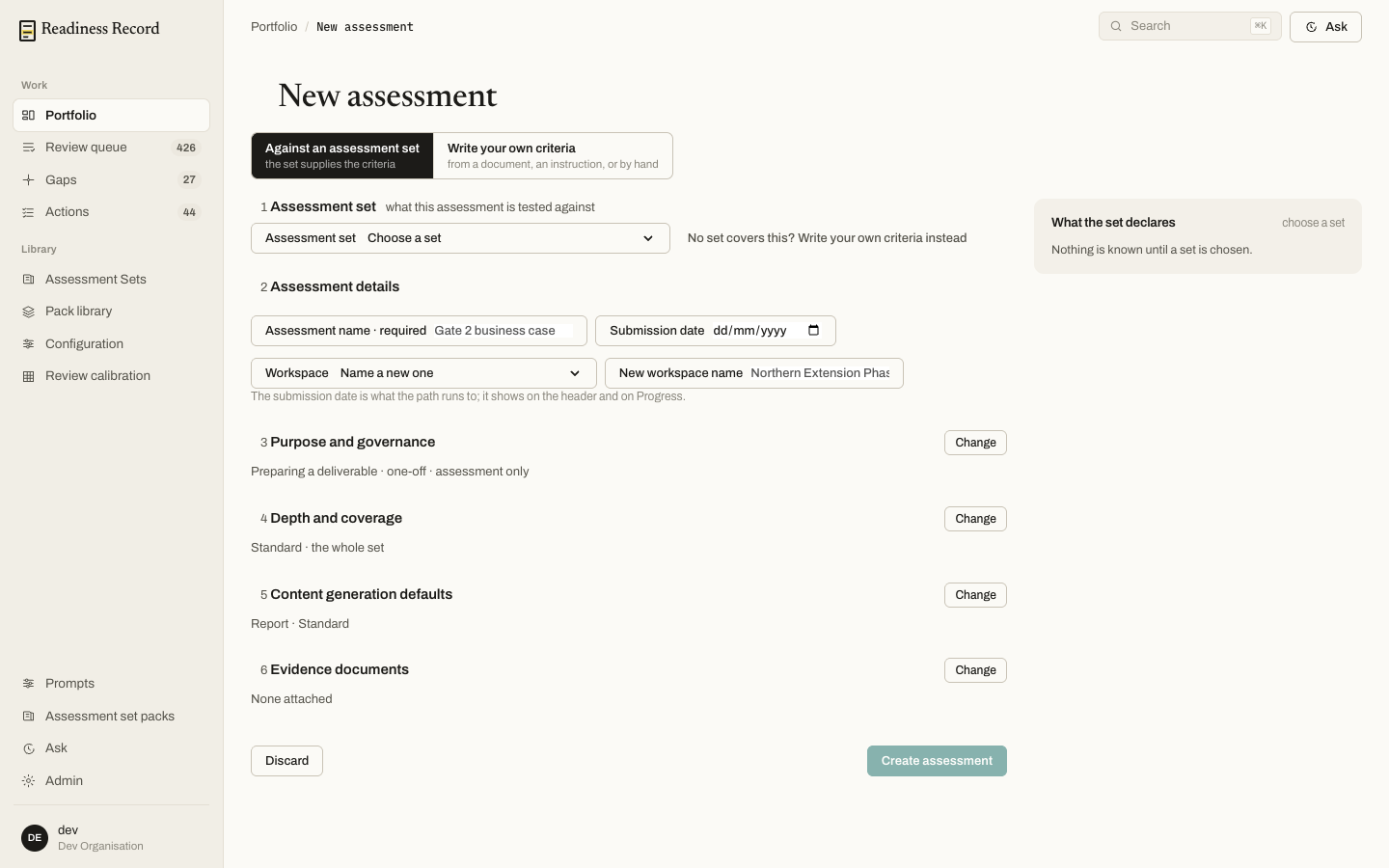
From the Portfolio, click New assessment. You choose between:- Against an assessment set — the set supplies the criteria.
- Write your own criteria — from a document, an instruction, or by hand.
 Then work through:
- Assessment set — what this assessment is tested against.
- Assessment details — a required name, an optional submission date (the date the whole assessment works towards — it drives Progress and shows in the header), and the workspace it belongs to (an existing one, or name a new one).
- Purpose and governance — e.g. preparing a deliverable, one-off, assessment only.
- Depth and coverage — see below.
- Content generation defaults — the default depth for generated report content.
- Evidence documents — attach what you already have, or add them afterwards on Evidence & Runs.
Standard vs Extended
This is the choice that governs how thoroughly the engine reads your documents, and it directly sets how much a run costs.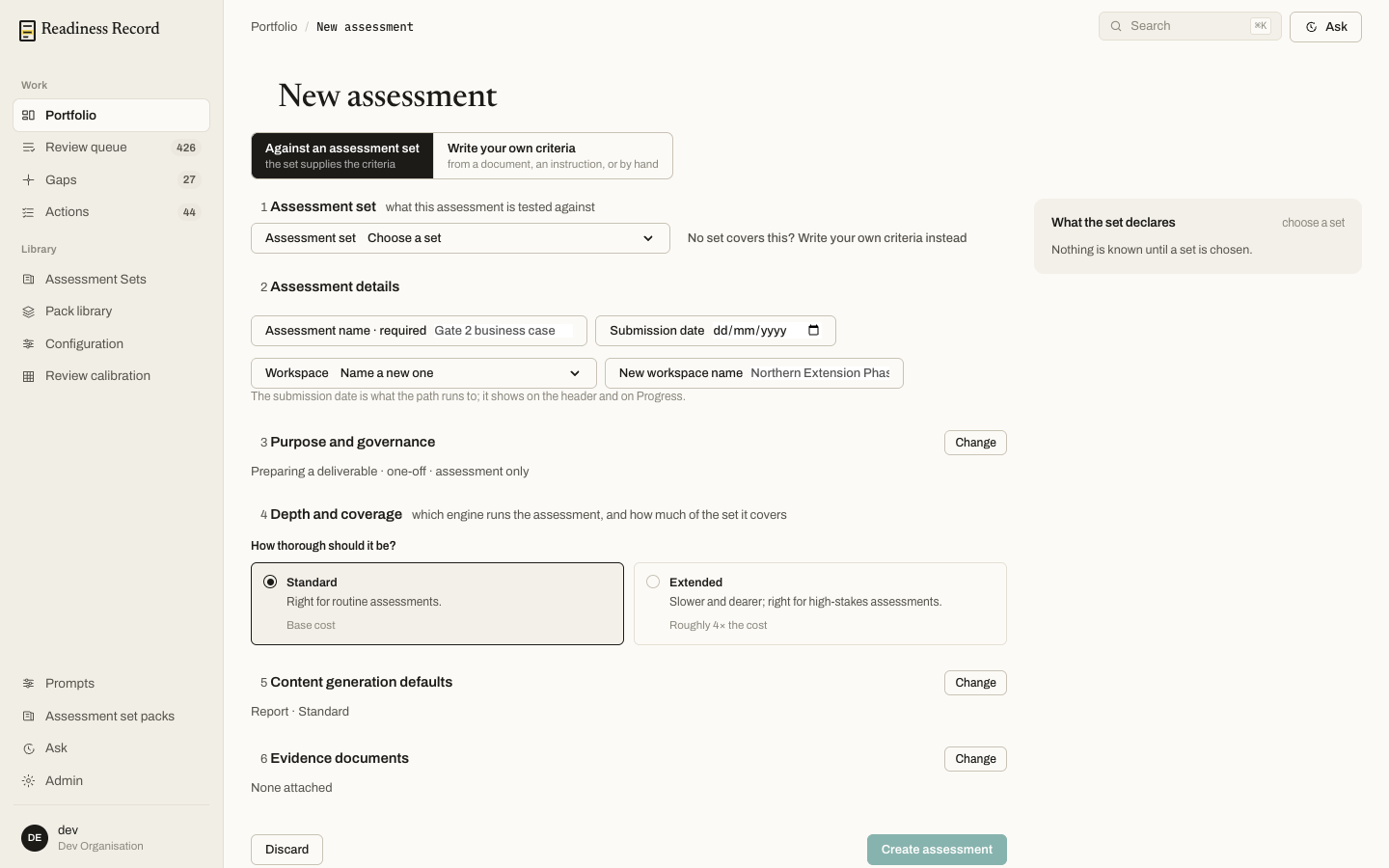
- Standard — right for routine assessments. This is the base cost and the default.
- Extended — slower and dearer; right for high-stakes assessments. Roughly 4× the cost of Standard.
What a run costs, in practice
Every run calls the assessment engine and Azure’s document-reading service, and both are billed per use. A run against a full set (around 49 criteria on a typical gateway framework) is a real cost, not a trivial one, and Extended is materially more again. Re-running an assessment, and the “re-assess” action on an individual criterion, both trigger a full run — there is no cheaper partial option. Plan runs accordingly: get your documents right first, and choose Standard unless you specifically need Extended’s depth.After you start a run
The Evidence & Runs tab tracks each run: criteria read, what moved since the previous run, and which documents drove the change. See Documents.What’s next
- Results — see what the run found
- Findings Review — decide each finding