
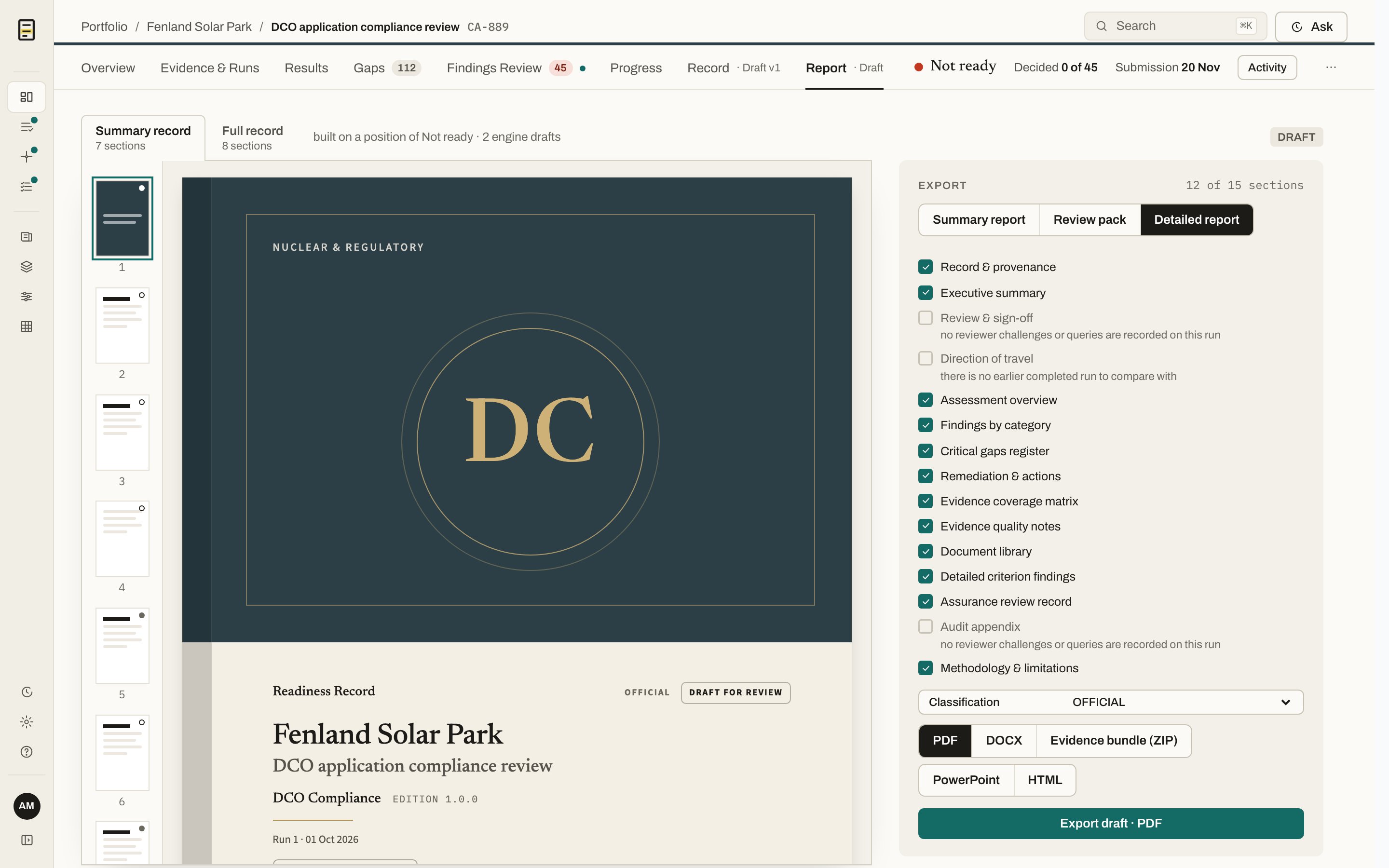
The preview
Two tabs sit on the paper’s top edge:- Summary record: the sections without the per-criterion appendix.
- Full record: everything, including the per-criterion appendix.
Contents
Under the preview, Contents lists each section with the page it starts on, marked:- From the record: taken directly from decided content.
- Engine draft: written by the engine, so check it before you rely on it.
Export
The side column starts with Export.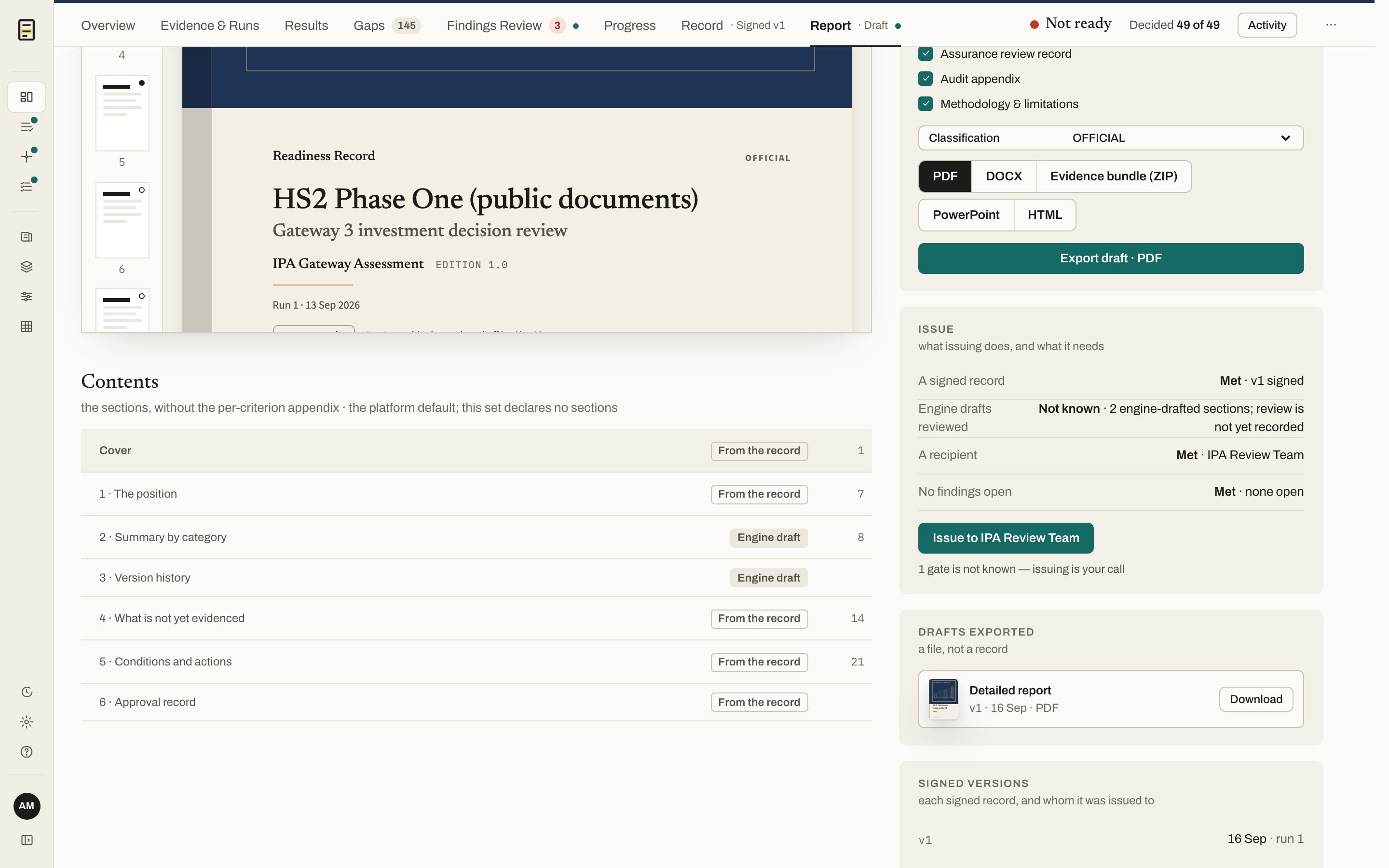
- Choose a report: Summary report, Review pack or Detailed report. Each sets a starting selection of sections, and the header counts them, for example “12 of 15 sections”.
- Tick or untick sections in the checklist. A section with nothing to show says why, for example “there is no earlier completed run to compare with”.
- Choose a Classification marking, for example OFFICIAL.
- Choose a format: PDF, DOCX, Evidence bundle (ZIP), PowerPoint or HTML.
- Click Export draft (it names the format, for example Export draft · PDF).
Issue
Issue says what issuing does and what it needs. It checks four things:- A signed record;
- Engine drafts reviewed;
- A recipient, which the set declares;
- No findings open.
Drafts exported and Signed versions
- Drafts exported is a shelf of the files you have exported: “a file, not a record”. Click Download to fetch one again.
- Signed versions lists each signed record, and whom it was issued to.
What’s next
- Record: what a report is built from
- Configuration: templates and branding under Output & branding