
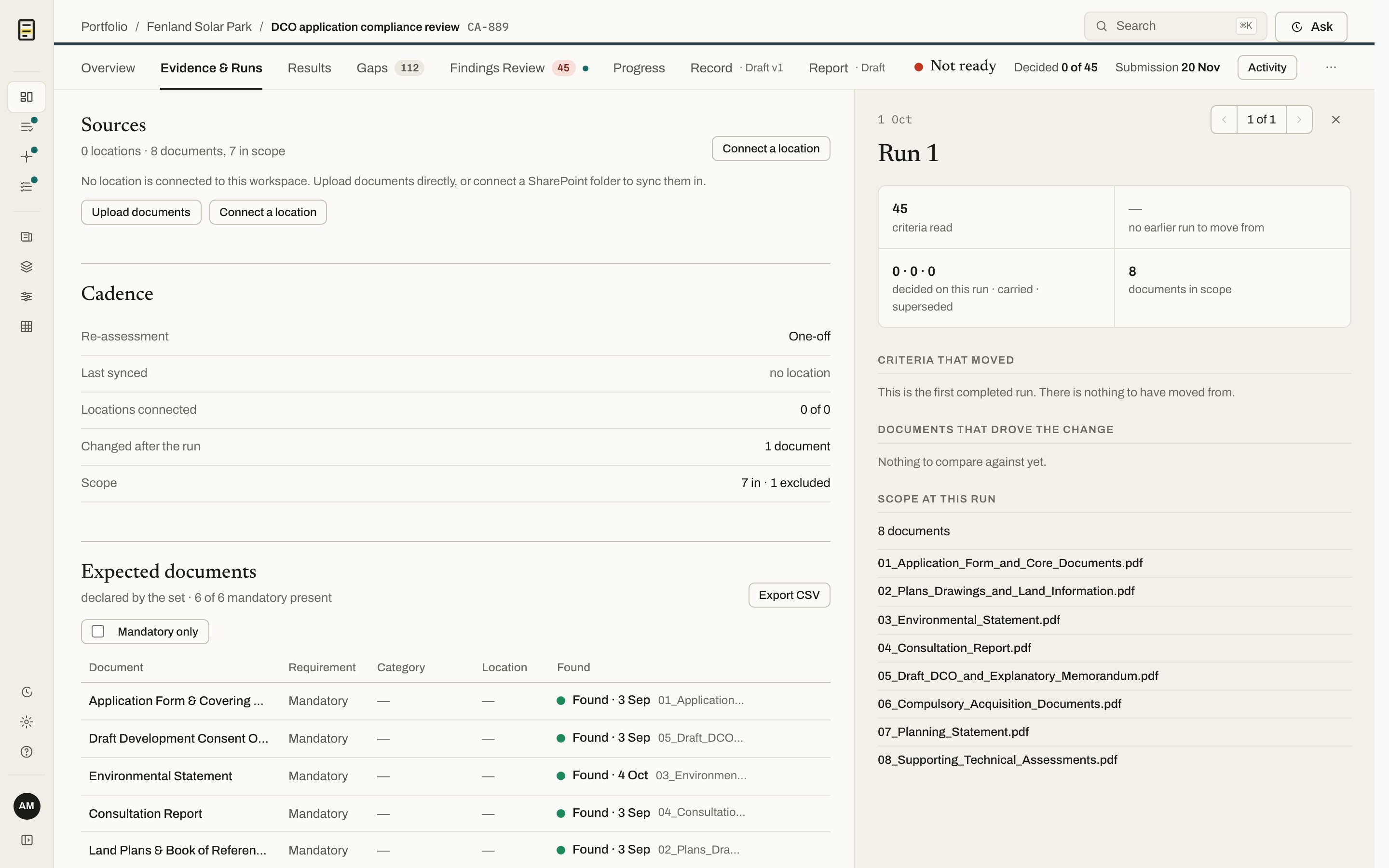
Sources
Sources says how many SharePoint locations are connected and how many documents are in scope. There are two ways to add documents:- Upload documents: add files directly.
- Connect a location: link a SharePoint folder so the workspace syncs from it instead of you uploading by hand.
Cadence
Cadence answers how often the evidence is looked at:- Re-assessment: whether the assessment runs on a schedule or only when someone starts a run, for example “One-off”.
- Last synced: when documents were last pulled from a connected location.
- Locations connected: how many of the workspace’s locations are syncing.
- Changed after the run: how many source documents have changed since the last run. If any have, the assessment’s reading is behind the evidence.
- Scope: how many documents are in scope, and how many are excluded.
··· menu at the end of the tab row.
Expected documents
The set can declare the documents it expects to see, such as “Environmental Statement” or “Lifting Plan”. The list shows one line per document:- Requirement: Mandatory or Expected.
- Category and Location.
- Found: the date it was found and the file that meets it, or Not found.
Workspace evidence library
The Workspace evidence library lists every document the workspace holds, newest change first. For each one you see:- the expected document it meets, if any;
- its Category (click Add category to set one);
- when it was Synced;
- its Scope: In scope or Excluded, with who excluded it and when;
- its State: for example Assessed in the run, Changed after the run, Not assessed, or Expected, not supplied for an expected document nobody has added;
- Cited by: how many citations point at it.
Runs
Runs lists every run, newest first, with when it completed, how many criteria it read, how many moved, who started it, the set version, and its state. Click a run to open its drawer on the right. The drawer shows the criteria read, what moved since the run before, how many decisions were made, carried or superseded on it, the documents in scope, Criteria that moved, Documents that drove the change and Scope at this run. Use the pager at the top of the drawer to step between runs. Once an assessment has two completed runs, Compare the last two in the Runs list, or Compare with run in a run’s drawer, opens a side-by-side comparison of the two runs on the same tab.What’s next
- Assessment Sets and Pack library: what your documents are assessed against
- Running an assessment: start a run once your documents are in place