
The frame
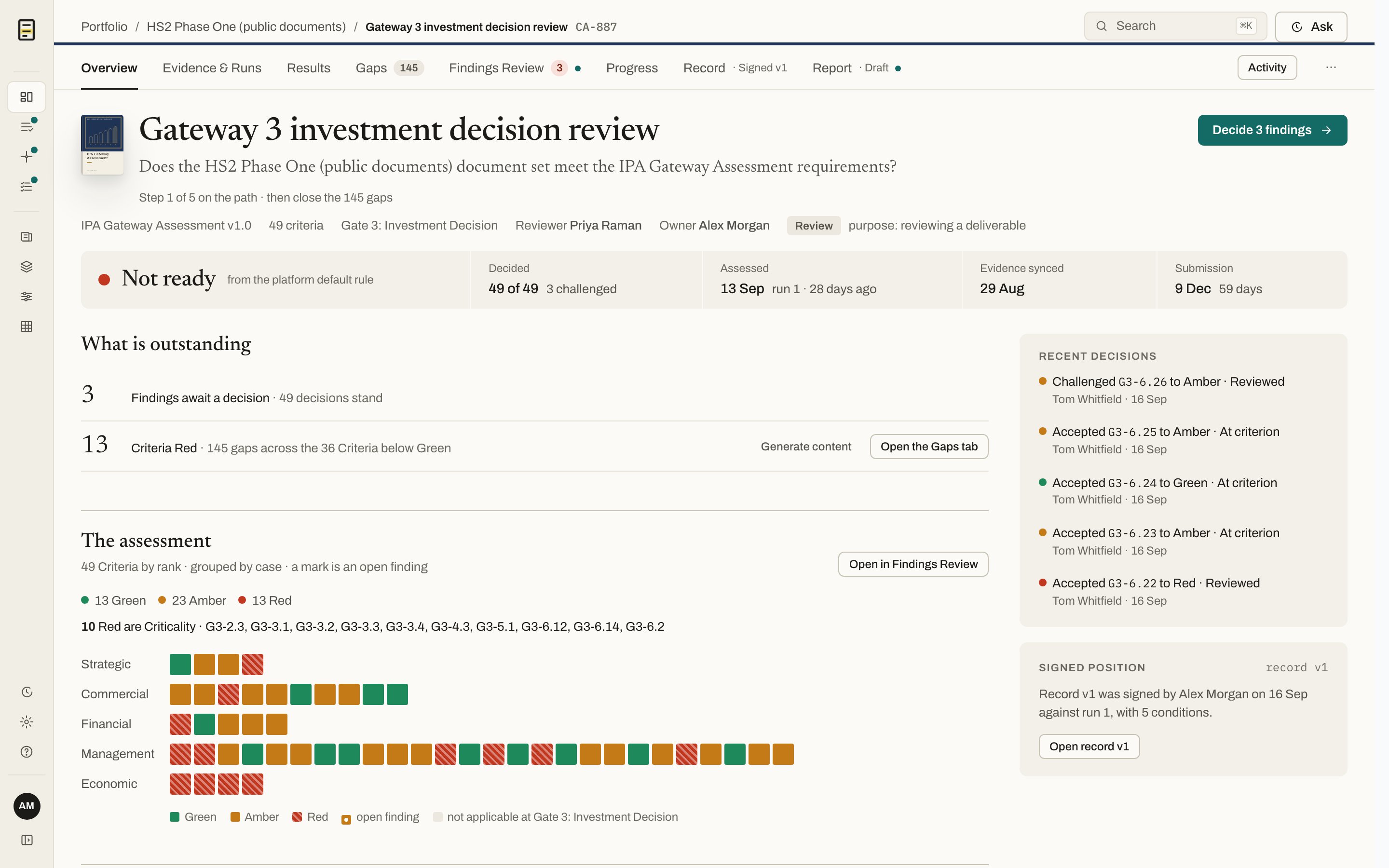
The breadcrumb comes first: Portfolio, then the workspace, then the assessment’s name and its code, for example “Gateway 3 investment decision review CA-887”. The tab row comes next:
Counts sit beside Gaps and Findings Review, and Record and Report carry their state, such as “Signed v1” or “Draft”.
The facts sit at the right of the same row: the position word (for example Not ready), Decided n of m, Assessed, Submission, the purpose chip (Review or Prepare), Activity, and the
··· menu. On narrower screens some facts drop out to make room; the position, Decided and the two buttons stay. On the Overview the facts move into the header, so only Activity and ··· remain on the row.
Activity opens a panel listing each criterion’s latest event, for example when it was assessed and whether it is awaiting a decision.
The ··· menu
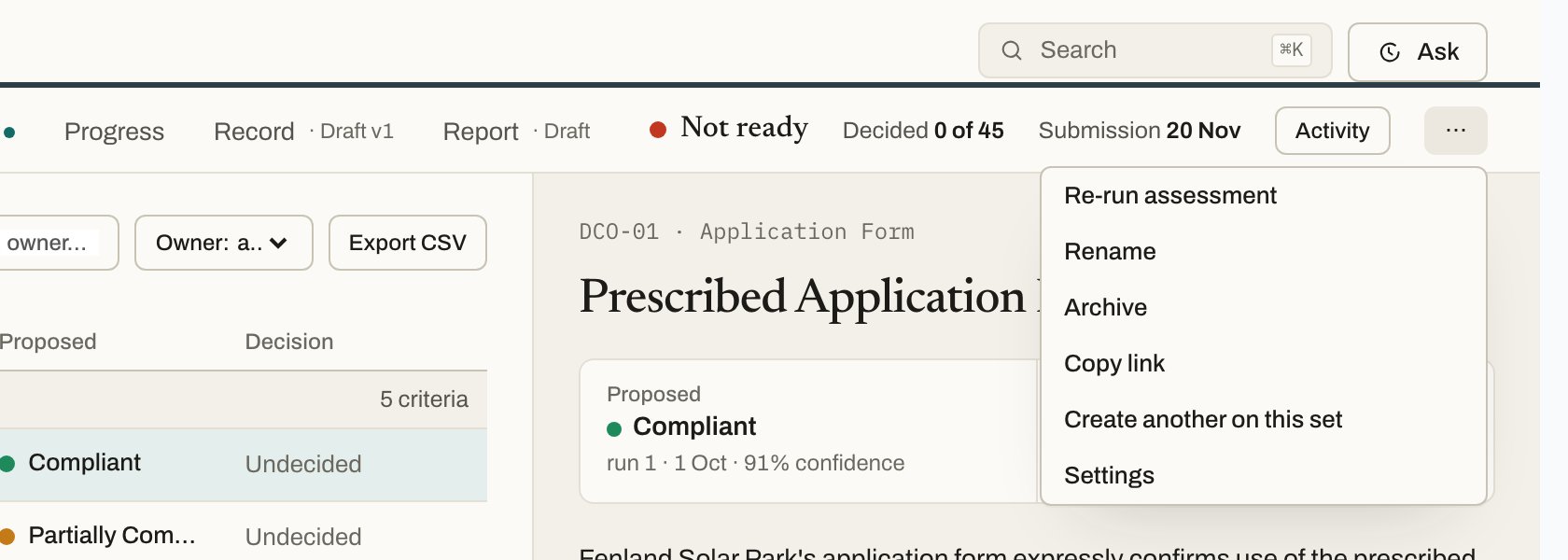
- Re-run assessment: start a new run (see Running an assessment).
- Rename: change the assessment’s name.
- Archive: take the assessment off the Portfolio. On an archived assessment this reads Restore.
- Copy link: copy the assessment’s address to send to a colleague.
- Create another on this set: start a new assessment on the same set, in the same workspace.
- Settings: purpose, cadence, routing and depth. Changes apply from the next run.
The Overview
Only the Overview has the large header: the set’s cover, the assessment’s title, the question it answers, and a step line such as “Step 1 of 5 on the path · then close the 145 gaps”. Under it are the set and version, the number of criteria, the stage, the reviewer and owner, and the purpose. The button at the top right is the next step, for example Decide 3 findings. A second button can follow it, such as Close 1 Non-Compliant. The status cards below give the position (and the rule it comes from), Decided, Assessed, Evidence synced and Submission. What follows depends on the assessment’s purpose. When you are reviewing a deliverable, the Overview shows:- What is outstanding: one line per thing to do, with its count and the control that does it, for example findings awaiting a decision, criteria at the lowest rank with Open the Gaps tab, or source documents changed after the run with Open Evidence & Runs.
- The assessment: a counts line by rank, any flagged criteria at the lowest rank, then a mosaic of every criterion by rank, grouped by the set’s cases or categories. A marked square is an open finding. Open in Findings Review takes you to the first one.
- Position by case: a table of each group’s criteria by rank, with its open findings.
- Movement: what moved since the run before.
- Side panels: Recent decisions and Signed position.
- The assessment: as above.
- What to do next: the three gaps that would move the position most, each with its owner, what closes it and its effect on the position.
- Below the top rank (for example Below Compliant): the criteria under the top rank, worst first.
- Satisfied: the criteria at the top rank, each with the passage it rests on.
- Side panels: Days to submission, Movement and Position by case.
What’s next
- Results: every criterion at a glance
- Findings Review: decide each finding