
Before you start
You need a Microsoft work account that your organisation’s administrator has added to Readiness Record. A personal Microsoft account will not work.Signing in
- Open your organisation’s Readiness Record address.
- Sign in with your Microsoft work account.
- If your organisation uses multi-factor authentication, complete the second step.
The layout
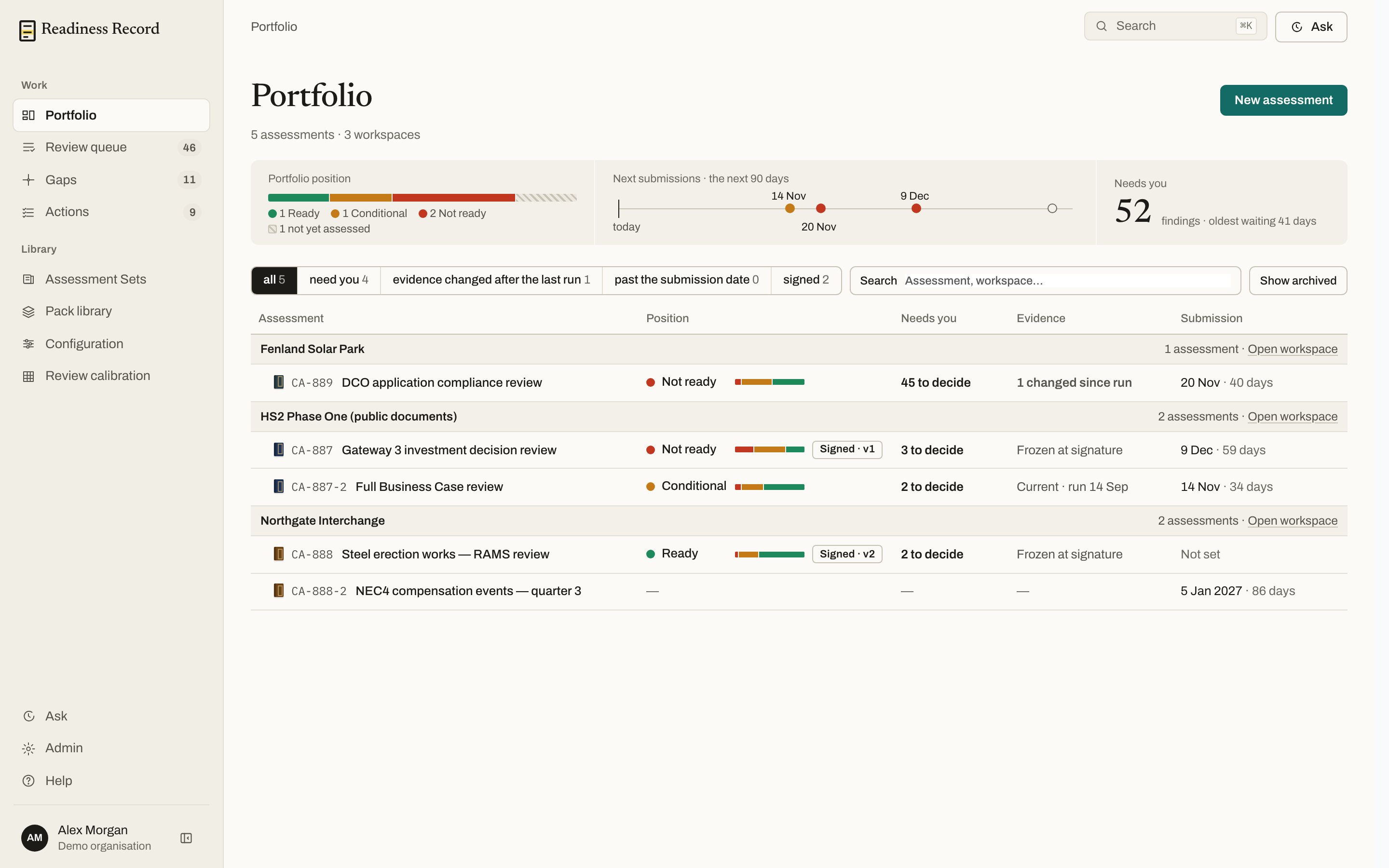
Every page has the same three parts.- The left navigation. Work holds Portfolio, Review queue, Gaps and Actions. Library holds Assessment Sets, Pack library, Configuration and Review calibration. At the foot are Ask, Admin and Help, then your name and organisation.
- The top bar. A breadcrumb on the left; Search (⌘K) and Ask on the right.
- The page. Each page opens with its heading in serif type and a short note underneath saying what the page is for. Sections down the page follow the same pattern.
The narrow navigation
Collapse menu, the button beside your name, shrinks the navigation to icons. Point at an icon to see its name. Expand menu brings the labels back, and the app remembers your choice. Inside an assessment the navigation always shows icons only, to give the page more room. It does the same while a reading drawer is open on a screen narrower than 1600 pixels.What each item in Work does
- Portfolio: every assessment you can see, grouped by workspace.
- Review queue: findings across all your assessments that are waiting on a decision. See Review queue.
- Gaps: the documents that would close the most gaps, across every assessment. See Gaps, Actions and Obligations.
- Actions: the work raised to close gaps, with owners and due dates, and the obligations your documents place on you.
Browser tabs and screen sizes
- Browser tabs name the page and the assessment, for example “Results · DCO application compliance review · Readiness Record”, so several open tabs are easy to tell apart.
- Large screens. From 1800 pixels wide the whole app is drawn 12.5% larger, and from 2400 pixels 25% larger.
- Small screens. Below 900 pixels wide the app shows a notice asking you to open it on a laptop or desktop.
What’s next
- Portfolio and workspaces: how assessments and workspaces relate
- Running an assessment: create your first one